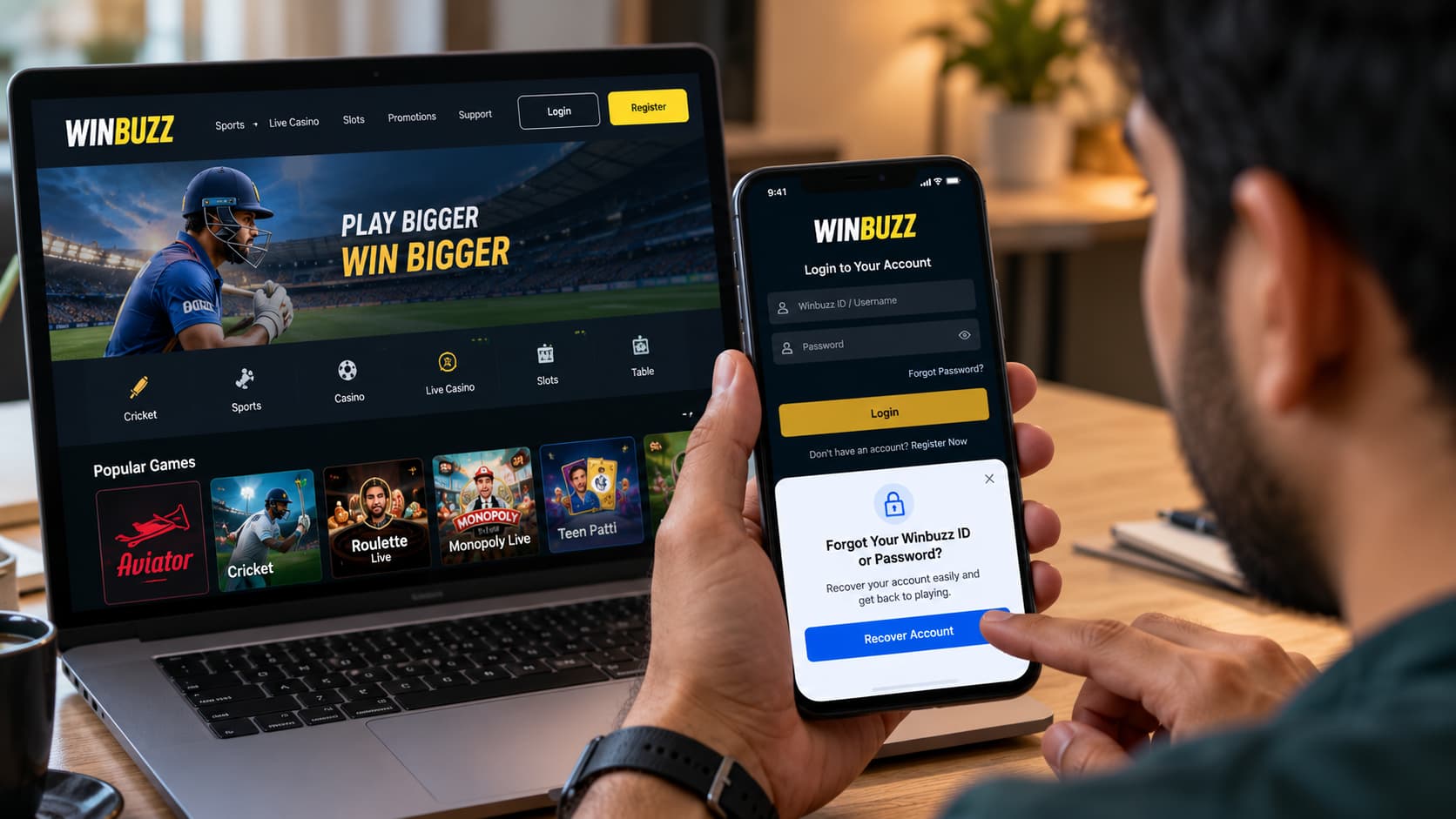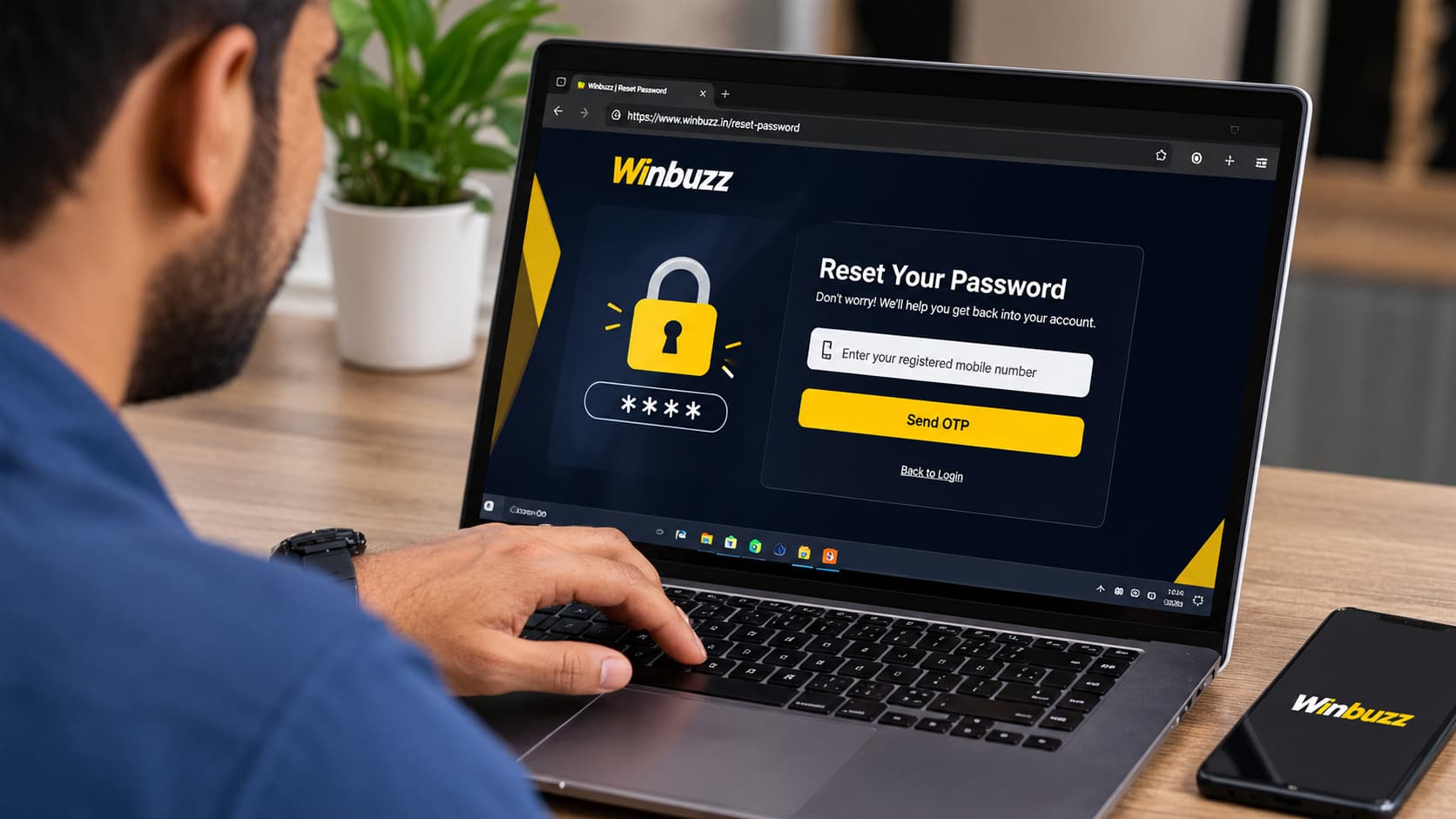

Adding money to an online gaming account should be a straightforward process, but new users often have questions such as “Winbuzz deposit kaise kare?”, which payment option to choose, what to do if a transaction remains pending, and how to keep payment details secure.
The WinBuzz deposit process generally involves logging into your account, opening the cashier or deposit section, choosing one of the payment methods currently available to you, entering an amount, and completing the transaction through the payment provider.
This guide explains the process step by step, along with practical information about WinBuzz ID, Winbuzz Register, Winbuzz Login, and account security.
Important: Payment methods, limits, fees and processing arrangements can change. Always follow the information displayed in your WinBuzz account at the time of making a transaction rather than relying on an old screenshot or third-party guide.
Read More<<<Winbuzz India: A Complete Guide to the Online Gaming Platform in 2026
What Is a WinBuzz Deposit?
A WinBuzz deposit means adding funds to your account balance using one of the payment options currently supported for your account.
Once a payment is successfully processed and credited, the corresponding balance should appear in your account according to the platform’s applicable payment terms.
For a new user, the general journey looks like this:
WinBuzz Register → WinBuzz Login → Deposit → Choose Payment Method → Enter Amount → Complete Payment → Check Balance
It is worth checking every detail before approving a payment. A few extra seconds spent checking the recipient, amount and transaction information can prevent unnecessary payment problems later.
How to Deposit on WinBuzz? Step-by-Step Guide
Step 1: Login to Your WinBuzz Account
Start by accessing your account and completing the Winbuzz Login process using your registered credentials.
Make sure you are on the website or application you actually intend to use. Similar domain names, copied logos, and unofficial download pages can make it difficult to distinguish one service from another.
Never provide your password, OTP, UPI PIN or banking credentials to someone claiming that they need them to complete a deposit for you.
Step 2: Open the Deposit or Cashier Section
After logging in, look for a button labelled Deposit, Add Money, Wallet, Cashier, or similar wording.
The exact interface can differ between desktop and mobile versions.
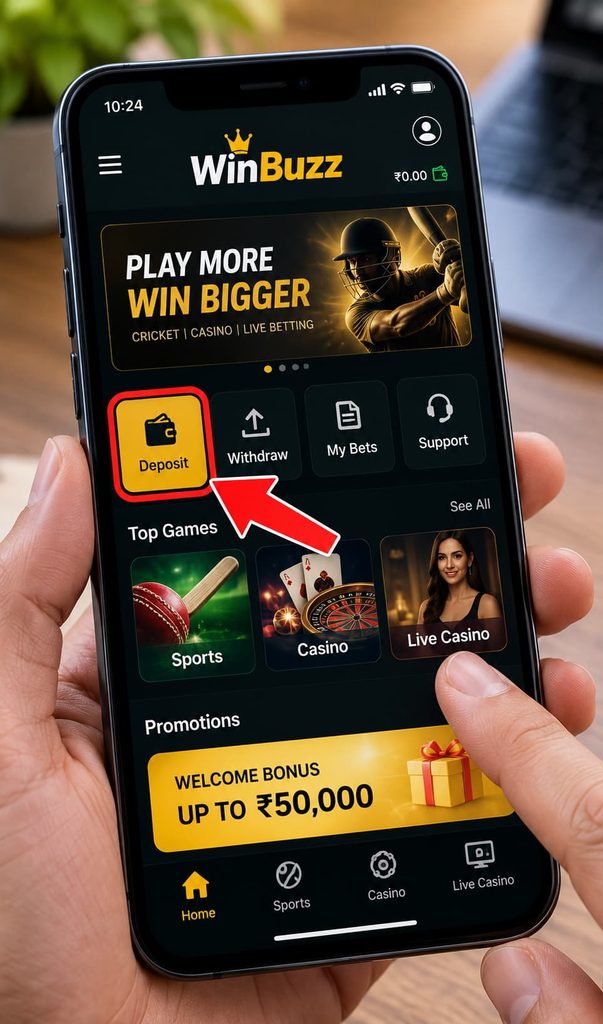
Selecting the deposit option should take you to the account’s current payment interface, where you can review the available options before proceeding.
Step 3: Check the Available Winbuzz Payment Methods
The next step is to check which payment methods are actually displayed in your account.
Depending on the current payment setup, users may see different options. Don’t assume that a payment method mentioned in an older article or screenshot is still supported.
Use this simple rule:
Check the live cashier first → Select an available method → Follow the displayed payment instructions
This is particularly important when using mobile payment systems because recipient and transaction instructions can change.
Step 4: Enter Your Deposit Amount
Enter the amount you want to add to your account.
Before continuing, check whether the cashier displays a minimum deposit, maximum deposit, processing fee or other transaction condition.
Avoid relying on an unverified article that promises a fixed WinBuzz minimum deposit because platform limits may change.
For example, if the payment screen currently displays a minimum qualifying amount, use the information shown there rather than assuming an older limit remains valid.
Step 5: Review Your Payment Details
This is one of the most important parts of the Winbuzz deposit process.
Before confirming, check:
- Deposit amount
- Selected payment method
- Recipient/payment information
- Account details
- Any displayed transaction fee
- Applicable payment instructions
- Any promotional conditions you intend to use
If something looks different from the instructions inside your account, stop and verify it before transferring money.
Step 6: Complete the Payment
Continue to the relevant payment provider and authorise the transaction according to its normal procedure.
When using UPI or another banking service, you should approve transactions only through the relevant payment application or banking interface.
Never share your UPI PIN or banking password with WinBuzz support, an agent, a Telegram user, or anyone else.
A UPI PIN is used by you to authorise a payment. Another person does not need to know it.
Step 7: Wait for Payment Confirmation
Once payment is completed, return to your Winbuzz account and check whether the balance has been updated.
If available, also check:
Wallet → Transaction History → Deposit History → Payment Status
Keep the transaction/reference number until you have confirmed that the payment has been correctly reflected in your account.
Read More<<<Winbuzz Latest APK Download: Features, Installation & Safety Guide
WinBuzz Deposit Kaise Kare Through Mobile?
For users accessing the platform from a smartphone, the process should follow essentially the same sequence:
Open WinBuzz → Login → Wallet/Deposit → Select Available Payment Method → Enter Amount → Pay → Verify Balance
The advantage of mobile access is that payment and account information can often be checked from the same device.
However, convenience shouldn’t replace security.
If a payment page unexpectedly opens another website, asks you to install an unknown application, or requests sensitive credentials, verify the process before continuing.
How to Deposit Using the Winbuzz App
If you’re using the Winbuzz App, first make sure you know where the application came from.
Android users sometimes search for terms such as Winbuzz App, Winbuzz APK download. APK files obtained from unknown websites can potentially be modified or contain unwanted software.
Before using an app for financial transactions, verify its source and review requested permissions.
Once logged into the intended application, the deposit flow should generally be accessible from the wallet/cashier section.
Winbuzz ID and Deposit: What Is the Connection?
Your Winbuzz ID identifies your account within the platform.
Deposits should therefore be associated with the correct account. Before making a payment, especially if you manage more than one account or device, confirm that you’re logged into the intended WinBuzz ID.
A useful routine is:
Check WinBuzz ID → Check Amount → Check Payment Details → Pay → Save Reference → Check Balance
This small habit can make transaction tracking much easier.
Winbuzz Register: What New Users Should Check Before Depositing
New users often move directly from Winbuzz Register to their first deposit.
Instead, spend a few minutes understanding the account first.
Before depositing, review the following:
Account details → Payment methods → Deposit limits → Withdrawal rules → Bonus terms → Verification requirements → Support options
Understanding withdrawal conditions before making a deposit is particularly useful. You don’t want to discover an important account or payment requirement only when you later try to withdraw funds.
Winbuzz Deposit and Winbuzz Bonus
Some users make their first deposit because they see a Winbuzz Bonus or promotional offer.
Don’t increase a deposit simply because a larger promotional amount is advertised.
Read the actual promotion terms first.
Important conditions to look for can include:
- Minimum qualifying deposit
- Maximum bonus
- Wagering requirements
- Eligible games or markets
- Expiration date
- Maximum qualifying stake
- Withdrawal conditions
- Bonus cancellation rules
A promotional balance should not automatically be treated as immediately withdrawable cash.
The specific terms of the current promotion determine how it works.
Winbuzz Deposit Pending: What Should You Do?
Suppose you’ve completed your payment, but your Winbuzz deposit is pending or your balance hasn’t updated.
Don’t immediately make the same payment again.
First, check your banking/payment application to determine whether money was actually debited.
Then review your WinBuzz transaction history.
You can follow this sequence:
Check Bank/UPI Status → Check Winbuzz Deposit History → Save Transaction ID → Wait for Applicable Processing Period → Contact Verified Support if Necessary
Keeping the transaction ID makes it easier to explain exactly which payment you’re asking about.
Winbuzz Deposit Successful but Balance Not Showing
Sometimes a payment provider can mark a transaction successful before the receiving account interface updates.
If this happens, retain:
Transaction ID + Amount + Date/Time + Payment Method + Account ID
If the platform provides a verified payment-support channel, those details can help the support team investigate the transaction.
Avoid posting screenshots containing sensitive financial information publicly.
Winbuzz Deposit Failed: Common Reasons
A Winbuzz deposit failed message doesn’t necessarily mean there is a serious account problem.
Possible reasons can include payment-provider failure, incorrect payment details, insufficient bank balance, expired payment sessions, temporary technical problems, or transaction restrictions imposed by the payment provider.
Don’t repeatedly attempt transactions without understanding whether the previous payment was debited.
Check the payment status first.
Winbuzz Deposit Limit: How Much Can You Add?
Users frequently search for Winbuzz minimum deposit and Winbuzz maximum deposit.
These figures should be verified directly from the current cashier.
A responsible guide shouldn’t invent a fixed amount because deposit limits can potentially depend on the account, payment method or current platform configuration.
Before paying, check:
| Deposit Detail | What to Verify |
|---|---|
| Minimum deposit | Current amount shown in cashier |
| Maximum deposit | Current account/payment limit |
| Payment method | Options currently available |
| Processing time | Current payment information |
| Fees | Any fee displayed before confirmation |
| Bonus eligibility | Current promotion terms |
This approach keeps the information useful even when payment arrangements change.
Winbuzz Deposit and Withdrawal: Understand Both Before Playing
Depositing money is only one side of account management.
Before adding funds, understand how Winbuzz withdrawal works as well.
Check whether account verification may be required, which withdrawal methods are currently available, whether minimum/maximum limits apply, and whether an active bonus has withdrawal-related conditions.
Think of the complete payment journey as:
Deposit → Account Balance → Gameplay → Eligible Balance → Withdrawal
Understanding the whole process is better than focusing only on how quickly money can be deposited.
Is WinBuzz Deposit Instant?
Avoid assuming every WinBuzz payment will be instant.
Some transactions may update quickly, while others can require additional processing depending on the payment provider, banking network, account status or technical conditions.
The payment status displayed in your account and by your bank/payment provider should be your primary reference.
How to Keep Your Winbuzz Deposit Secure
Payment security matters more than speed.
When making a deposit:
Never share your Winbuzz password. Support should not need your password to investigate a transaction.
Never share your OTP. Treat one-time passwords as confidential.
Never disclose your UPI PIN. You enter it yourself inside your payment application.
Verify payment instructions. Don’t send money simply because someone sends you a payment QR code through an unsolicited message.
Keep transaction records. Reference IDs can be useful when resolving payment disputes.
Avoid remote-access apps. Don’t give strangers remote access to your phone for help with a deposit or withdrawal.
Common Winbuzz Deposit Mistakes to Avoid
New users can reduce payment problems by avoiding a few common mistakes:
- Depositing before checking withdrawal requirements.
- Sending money to details received from an unverified source.
- Making the same payment twice because the first one is pending.
- Entering an incorrect amount.
- Sharing OTP or UPI PIN with someone claiming to be support.
- Claiming a Winbuzz Bonus without reading its conditions.
- Installing an unverified Winbuzz APK solely to make a payment.
- Failing to save the payment reference number.
- Depositing more money just to qualify for a promotion.
- Continuing to deposit in an attempt to recover previous losses.
Responsible Depositing on Winbuzz
A good deposit strategy isn’t about depositing more. It’s about deciding in advance how much you’re comfortable spending.
Set a fixed entertainment budget before opening the cashier.
Money needed for rent, bills, food, debt payments, savings or other essentials shouldn’t become a gambling balance.
If you lose the amount you planned to spend, don’t make another Winbuzz deposit simply to chase the loss.
Taking a break is also a valid decision.
Winbuzz Deposit Checklist
Before pressing the final payment button, quickly check:
✓ Correct WinBuzz ID
✓ Correct deposit amount
✓ Current payment method
✓ Payment details verified
✓ Deposit limits checked
✓ WinBuzz Bonus terms reviewed
✓ Withdrawal rules understood
✓ No OTP/PIN shared
✓ Transaction reference saved
✓ Deposit remains within your planned budget
This takes less than a minute and can prevent avoidable mistakes.
FAQs on Winbuzz Deposit
1. How to deposit on WinBuzz?
Login to your WinBuzz account, open the deposit or wallet section, select one of the payment methods currently available, enter your amount, verify the details and complete the transaction through the relevant payment provider.
2. WinBuzz deposit kaise kare?
WinBuzz Login → Deposit/Wallet → Payment Method → Amount → Verify Details → Complete Payment → Check Balance. Exact options can depend on the current account interface.
3. Can I deposit through the WinBuzz App?
If the application provides a deposit section, follow the payment options shown within your account. Verify the source of any WinBuzz App or WinBuzz APK before using it for financial transactions.
4. What is the minimum WinBuzz deposit?
Check the live WinBuzz cashier for the current minimum applicable to your account/payment method. Avoid relying on an old fixed amount because payment limits can change.
5. Why is my WinBuzz deposit pending?
A pending transaction can result from payment processing, banking delays, account review or technical issues. Check whether your bank actually debited the payment and review the platform’s transaction history before attempting another deposit.
6. What should I do if my deposit is successful but the balance is not showing?
Keep your transaction ID, amount, date/time and payment details. Check your transaction history and, if the problem persists beyond the applicable processing period, contact the platform through a verified support channel.
7. Does a WinBuzz Bonus apply automatically after deposit?
That depends on the particular promotion. Check eligibility, qualifying deposit, wagering, expiry and withdrawal conditions before making a deposit specifically for a bonus.
8. Is it safe to share my UPI PIN with WinBuzz support?
No. Never share your UPI PIN, banking password, OTP or account password with another person.
Final Thoughts
For anyone asking “How to deposit on WinBuzz?” or “WinBuzz deposit kaise kare?”, the process itself is relatively simple:
Login → Open Deposit → Choose Available Payment Method → Enter Amount → Verify → Pay → Check Transaction Status.
The more important part is what happens around those steps. Verify that you’re using the intended WinBuzz ID, review the current payment instructions, understand the Winbuzz Bonus conditions, check withdrawal requirements before depositing, and retain your transaction records.
Whether you access the platform through Winbuzz Login, treat every financial transaction carefully and keep gambling within a predetermined entertainment budget.